1. Set up your journal
Sign in with your own account, then open Goals & settings to choose calorie and step goals. Weight & profile holds your weight readings and optional calculation details.
YOUR FOOD, MOVEMENT & DAILY HISTORY
Your personal food and activity journal. Add meals, daily steps, workouts and weight right in the dashboard, then see your totals and progress over time.
Start my journalSign in with your own ChatGPT account. Your journal is separate from everyone else’s. Add and edit entries here in Daily.
WHAT YOU CAN DO IN DAILY
Breakfast, lunch, dinner and three snack slots. Enter values yourself or reuse foods from History and Favorites.
Daily nutrition totals, TDEE and deficit/surplus, with selectable graphs and periods from a week to all time.
Set a step goal, enter daily totals and record workouts. Review steps and workout minutes across dates.
Finalize a day to preserve its food, activity, goals and estimates. Reopen it whenever you need a correction.
A LOOK INSIDE DAILY
A preview of the dashboard, food journal and weight history. These screenshots use sample data, not anyone’s personal records. Select an image to view it full size.
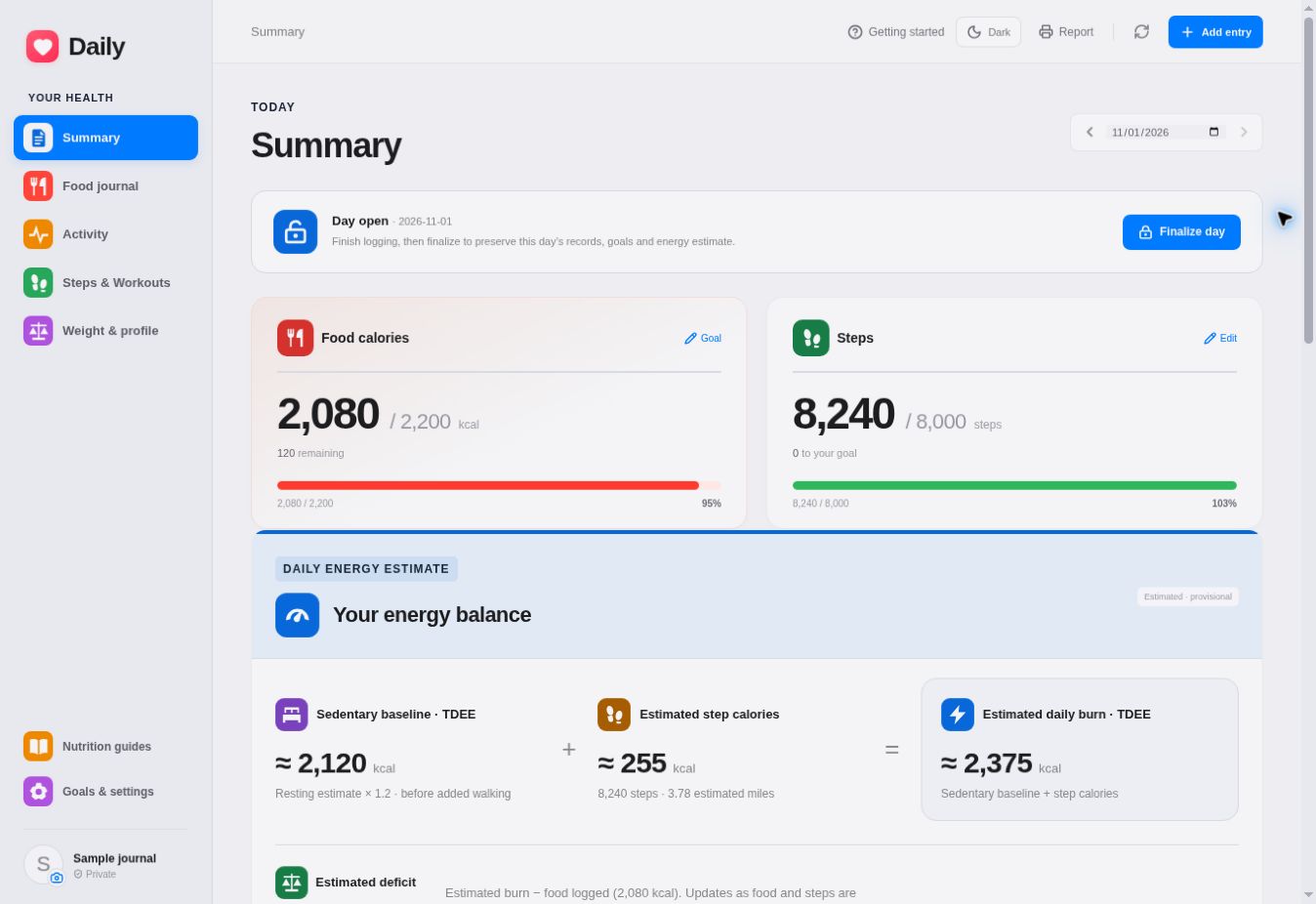
Food totals, steps and your estimated energy balance, together on Summary.
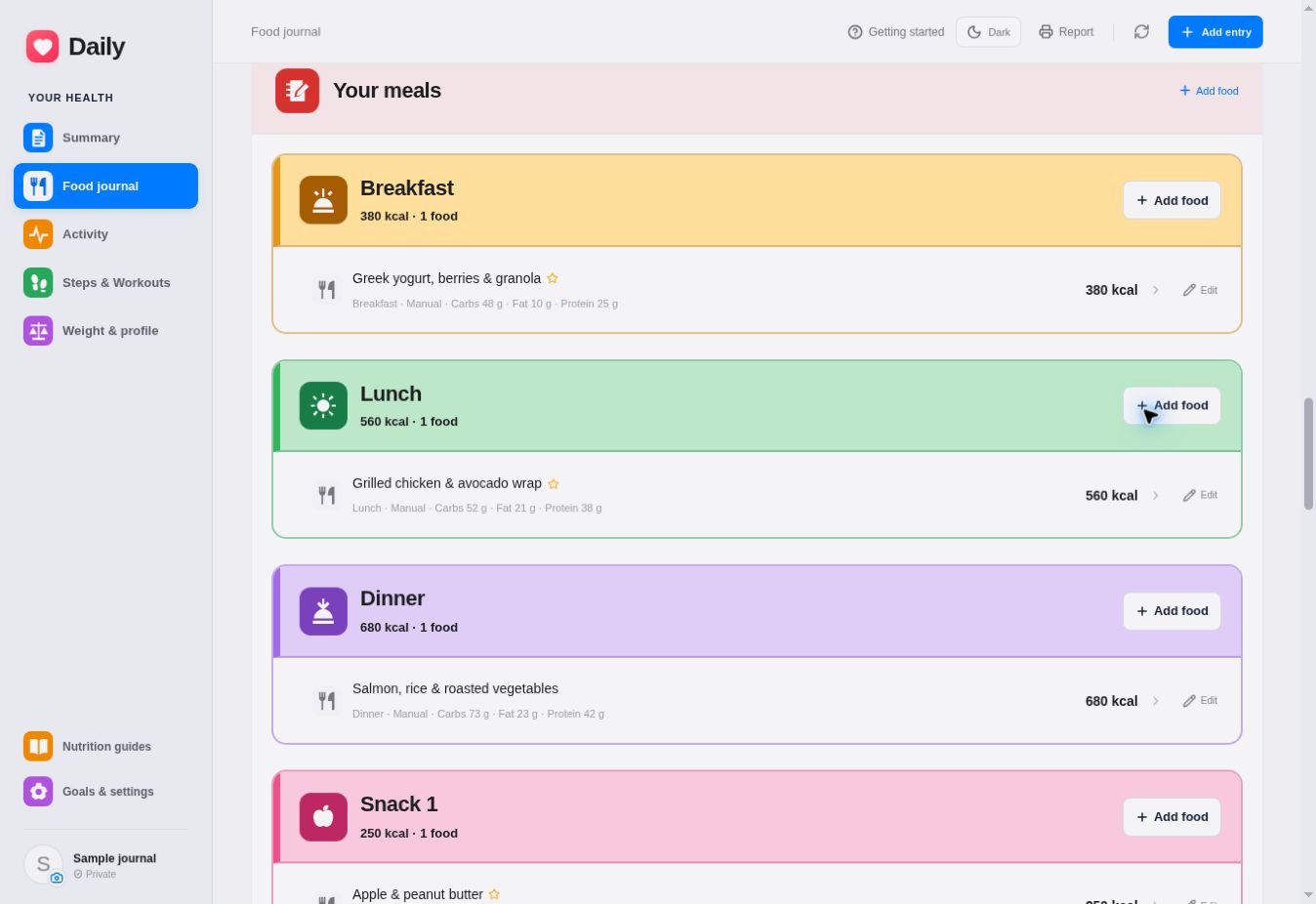
Distinct meal groups keep breakfast, lunch, dinner and snacks organized.
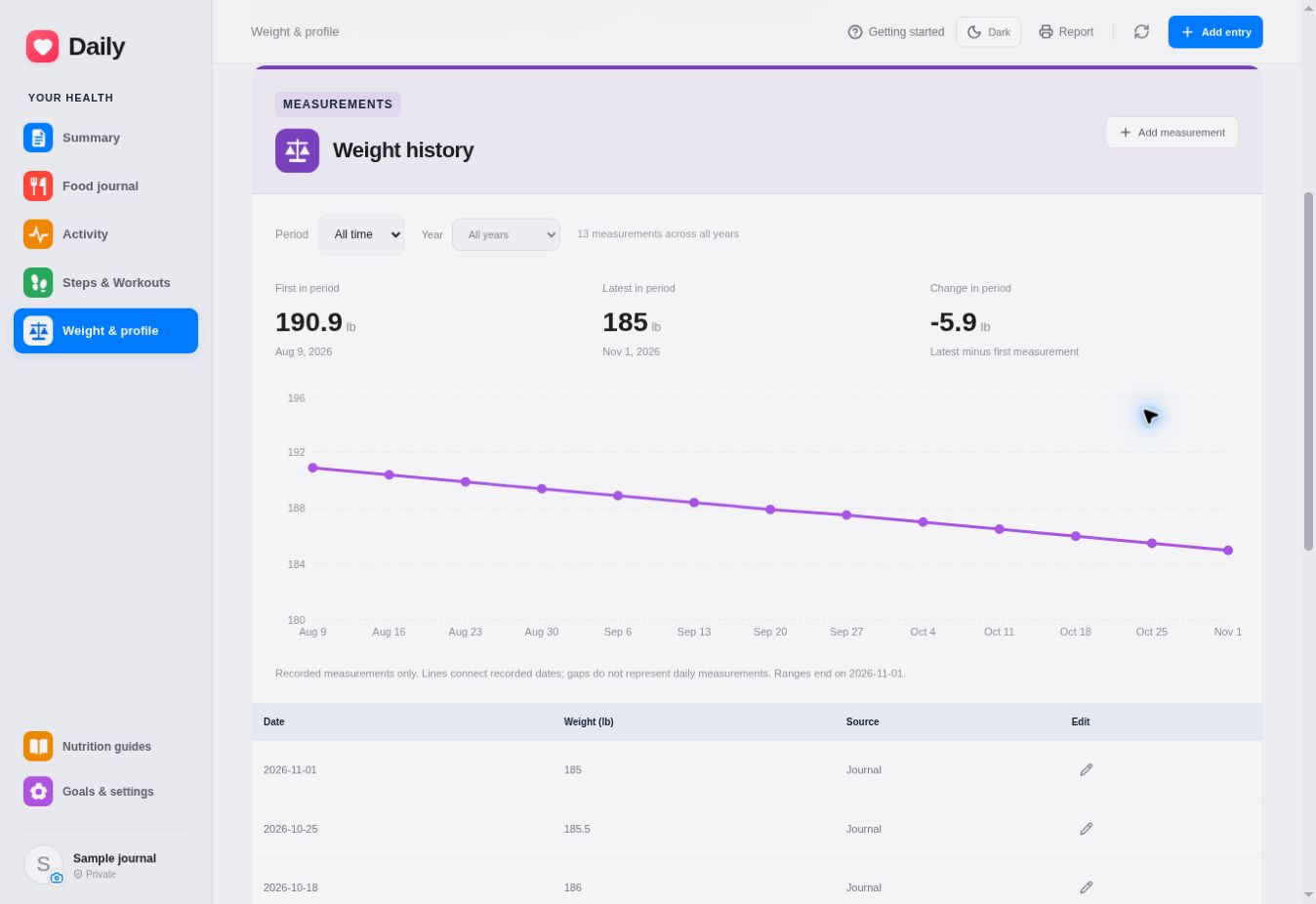
Review recorded measurements and changes across the period you choose.
Sign in with your own ChatGPT account to start a separate journal. Add and edit records using Daily’s forms, buttons and menus. You do not need to install a plugin, create an API key or set up a chat.
Daily does not read your ChatGPT conversations. For this version, food and movement totals come from the entries you save yourself. Refresh reloads your saved journal; it does not collect new readings from a phone or watch.
GET STARTED
Start with the dashboard. Your journal and uploaded files belong to your signed-in account.
Sign in with your own account, then open Goals & settings to choose calorie and step goals. Weight & profile holds your weight readings and optional calculation details.
Select the journal date. Use Add food for meals, Edit steps for a daily step total, or Weight & profile for a measurement. Review each entry and save it.
Use Summary for the selected day. Open Food journal for daily nutrition history and graphs, or Steps & Workouts for movement trends.
Finish logging food, steps and workouts, then select Finalize day. Review the preview and confirm. Reopen the date before making a later correction, then finalize it again.
Choose Breakfast, Lunch, Dinner, Snack 1, Snack 2 or Snack 3. Enter calories and any known carbs, fat, protein and fiber from a label or your own estimate. Leave unknown macros blank and mark estimated nutrition when appropriate. You can edit an entry while its day is open.
In the Add food form, use Reuse a food to switch between History and Favorites, search, and choose an item. Its saved values fill the form. If your portion is different, edit the nutrition values yourself; selecting a food does not automatically rescale them. Choose the date and meal before saving a new entry. Check Save as a favorite to find it again.
Open Nutrition guides to upload, search, open or delete your own PDFs. PDF only: up to 10 MB and 200 pages per guide. Text-based PDFs work best for search. Use Add to meal on a result, then review or enter nutrition values and choose the date and meal before saving.
Choose the date you want to update before adding a measurement or workout.
On Summary, select Edit on the Steps card, or use Edit steps in Steps & Workouts. Enter the total for that date. A later entry replaces the daily total; it is not added on top. Use Workout to record an individual session and its duration.
Open Weight & profile and select Add measurement. Weight is entered in pounds. Add height, date of birth and the equation setting under Edit profile if you want Daily’s energy estimate. Your weight history and profile are separate from other users’ journals.
On Food journal, find Food journal history below Your meals and Favorites. Select Show history to expand it, or Hide history to collapse it. Each row shows a day’s food calories, carbs, fat, protein, fiber, estimated TDEE and deficit or surplus. Select a date in the table to return to that day.
Use the Graph menu to view any one of those measures. Periods end on the journal date you selected. Missing values stay blank; partial nutrient totals are marked and leave gaps in the graph. On a phone, swipe the table to see every column.
Weight & profile also has a weight-progress graph and history filters.
Estimated from your saved weight, height, age and equation setting, with a sedentary allowance.
Calculated from the selected day’s saved steps and measurement inputs.
Your estimated daily burn. Subtract logged food calories to show a deficit or surplus.
Complete the calculation details in Weight & profile, add a weight reading and save a daily step total to see the estimate. Enter 0 steps if that is your actual total; a missing total is not treated as zero. Open days update when you save new inputs. Your calorie goal is separate; exercise does not automatically increase it. Workout calories are not added to this calculation.
These are estimates, with possible overlap between routine activity and step calories. Missing food does not count as a completed day of zero intake. Use How this is estimated in the dashboard to review the method.
Finalize day preserves the recorded food, steps, workouts, measurements, goals and energy estimate for that date. It blocks edits until you select Reopen day.
When finalizing from Summary or Food journal, you’ll also see “If every day were like today…” if the required inputs are available. This rough five-week weight illustration uses that day’s saved weight, estimated TDEE and logged food calories. It is saved with the finalized day and stays fixed when your current weight changes.
The outlook holds food and TDEE constant; actual weight change can differ substantially. It is an illustration, not a target or recommendation to repeat that intake. Older finalized dates need to be reopened and finalized again to save an outlook.
Daily is a browser-based journal that adapts to your screen. Use it on a desktop or laptop, an iPhone or iPad, or an Android phone or tablet. Sign in with the same ChatGPT account on each device to access the same saved journal.
Open Daily in your web browser. Use the side navigation for Summary, Food journal, Activity, Steps & Workouts, Weight & profile, nutrition guides and settings. Use Add entry at the top to save food or a measurement. Bookmark Daily for quick access.
Use the bottom navigation for Today (Summary), Food, Add food, Movement and More. More contains Weight & profile, nutrition guides, settings and reports. The layout follows your screen size, so a larger tablet may show the side navigation instead.
Tap the new Daily icon to open your journal. Apple’s iPhone instructions · iPad instructions
Menu names can vary by browser version. The shortcut opens Daily in Chrome. Google’s Android instructions
Open Weight & profile to add or edit weight readings, view your progress graph, or change the calculation profile. Finalized-day outlooks are shown on Summary and Food journal when available.
Select your profile photo or open Weight & profile and choose Change photo. Upload a JPG, PNG or WebP, drag to position your face, adjust zoom, then save. The photo is private to your account.
Home Screen icons open the Daily website; no App Store or Google Play download is needed. Use an internet connection to load and save your journal. Sign in again if prompted.
ChatGPT sign-in provides a site-specific account ID, email address and a name when available. Daily links your records to that identity. Other dashboard users cannot browse your food, measurements, photos or uploaded guides.
Daily stores your journal entries, goals, optional profile and photo, nutrition PDFs and finalized-day records.
Edit or delete entries and PDFs in the dashboard. Change or remove your profile photo. Reopen a finalized day before correcting its records.
Add and edit records in Daily’s dashboard. Signing in with ChatGPT identifies your account; it does not connect or copy your ChatGPT conversations.
Choose a date, log a meal, and build your own history.